.png)
Clinics
Registration
With any clinic or registration based event, the event build begins in +New Event. You may choose to change the Get Tickets button to Register. The ticket levels will be created as registration levels. For example, instead of Adult and Student tickets, you might create registration levels such as, Clinic 1, Clinic 2, Clinic 3. If the event is registration only and ticket distribution is not necessary, be sure to change the Ticket Distribution option to No Tickets, Receipt Only (Merchandise, Registration, etc.) Click here for more help on editing Ticket Levels.
Custom Fields/Questions at Checkout
With Custom Fields, you can set up questions at checkout to collect additional information from the purchaser. These fields can be set to optional or required and assigned to specific ticket levels. Common fields used are emergency contact name/number, allergy list, grade level, etc.
To create Custom Fields, scroll down to Advanced Event Options, and click Edit next to Manage Custom Fields.
Click “Add first question” and choose from the options below:
Short Answer (Text Box)
Checkbox
Dropdown
Date
Multiple Choice
Once you have your question(s) created, click the Save Changes button to save your work.
When it comes time to collect this information after sales have ended, you will need to download an Attendee List from the Reporting Center to see the answers that were provided. Click here for more information on Attendee Lists.
Once a ticket is sold, custom questions cannot be edited. Review prior to going on sale.
Custom Event Terms
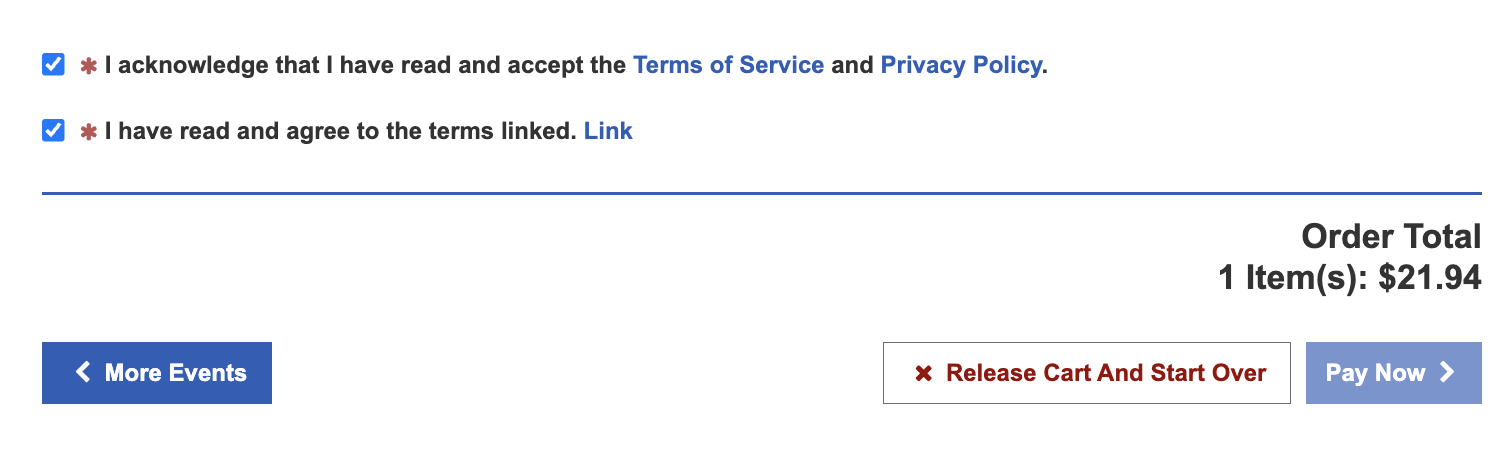
Event Terms create a set of terms and conditions that must be agreed upon before completing purchase. These terms will appear as a checkbox that must be selected during checkout.
To set Event Terms, scroll down to Advanced Event Options, and click Edit next to Custom Event Terms.
Write your terms in the Custom Verbiage Section, and click Submit to save your terms.
Example: Custom Terms can be useful if you have conditions that a parent or legal guardian must agree to before signing their child up for the registered event.
Additional Features To Consider
Event Codes: Presale codes, passcodes, and promo codes can be applied to your camp registration.
Custom Fee Structure: If you have Stripe connected to your box office, you can choose to either Pass Along or Absorb the fees for registering a camper.