.png)
How to Download a QR Code & Poster
To promote events, you have the option to download a unique QR Code to include in your own outreach or you can download a pre-designed poster that includes the QR Code. These can be customized to be single event specific, or school-wide events.
School-wide Events Code & Poster
Example:
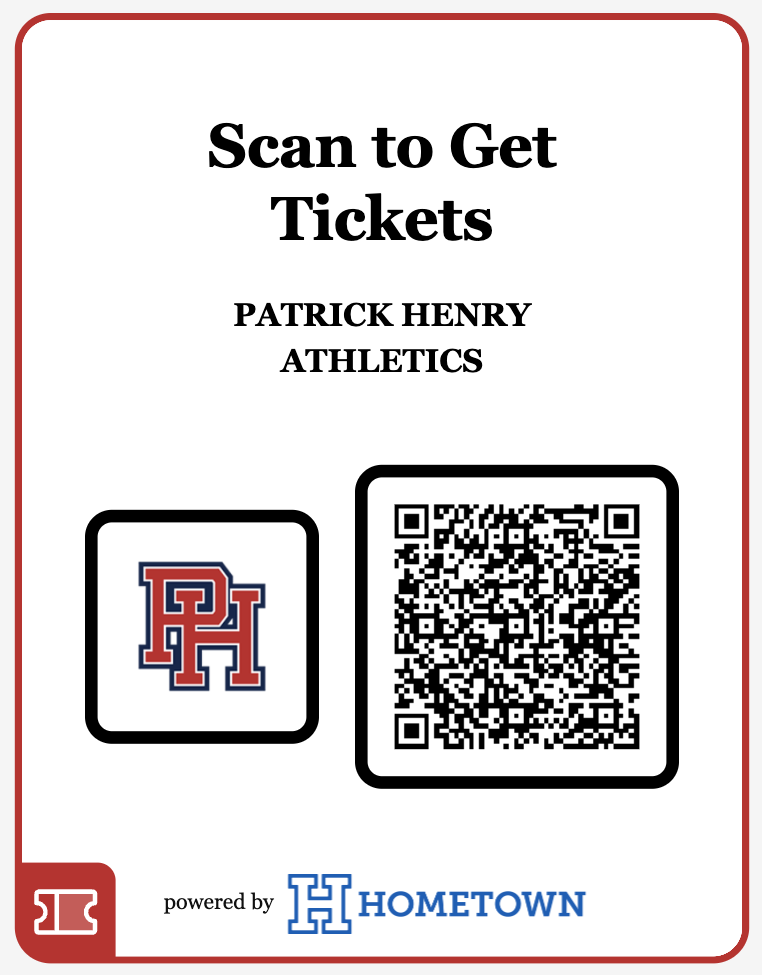
How to download a School-Wide Code or Poster:
Select the District (in some cases, this tab might read Organization or University) tab in the navigational panel at the top of your box office.
Select Schools
Select QR Poster for the school of choice.
Adjust the Heading Text and Subheading Text fields as needed
Select Download Poster if you’d like the full custom poster, or select Download QR Code Only to create the unique QR code.
NOTE: The school must be searchable at events.hometowntickeitng.com. Support can help adjust this setting if needed.
Single Event QR Code & Poster
Example:
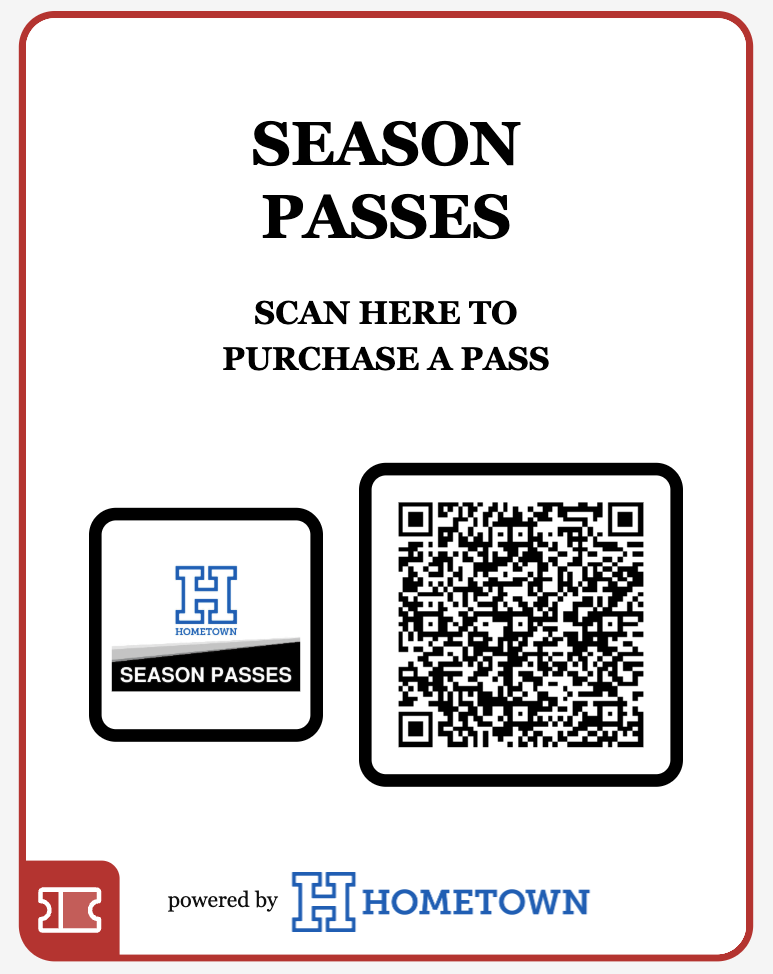
How to download a single-event QR code or poster
Within the box office, open the event details to the specific event
Select Share Event in the top right corner
Select QR Poster
Adjust the Heading Text and Subheading Text fields as needed
Select Download Poster if you’d like the full custom poster, or select Download QR Code Only to create the unique QR code.