.png)
Product Catalogs
These are used create and configure a catalog of products within the Box Office to be sold through the Point of Sale system (Hometown Gate App).
Settings → All Settings → Products (You must have School Administrator permissions or higher)
Begin by selecting Add a Catalog
Enter a Catalog Name and begin adding items to sell by selecting Add a New Product

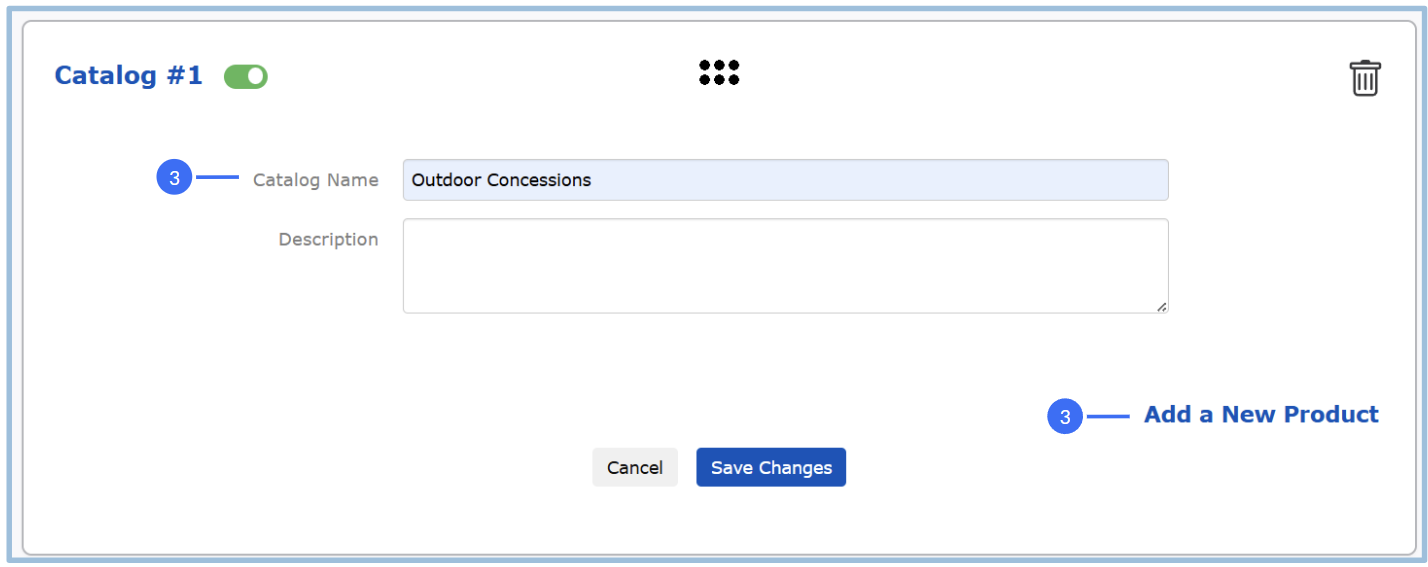
The product order can be adjusted through ‘drag and drop’ using the dots icon to the left of the product. The product must be enabled (toggled on - in green) to be adjusted.
To delete a product, use the Trash Bin icon to the right of the product. Once a sale has occurred, you can no longer delete the product.
Use the toggle to the right of the product to deactivate the item.
Deactivate individual products if they are sold out or no longer offered.

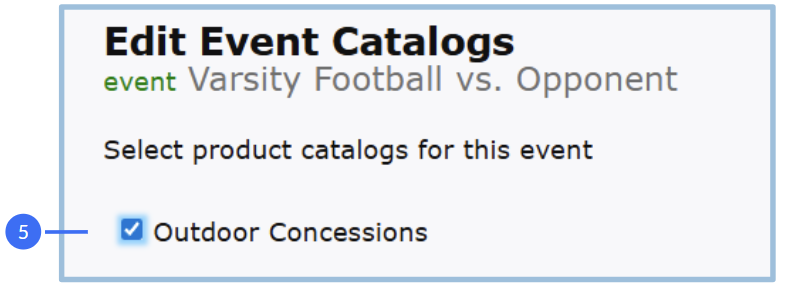
Associate Product Catalogs with an individual event in order to sell those products within the Gate App at the event.
From the Event Details page under Advanced Event Options → Product Catalogs and click Edit
Check the box next to the catalog you want to sell during that event and click Submit