.png)
How to Sell Tickets
Once successfully logged into the app, the user will be prompted to choose the event they are working.
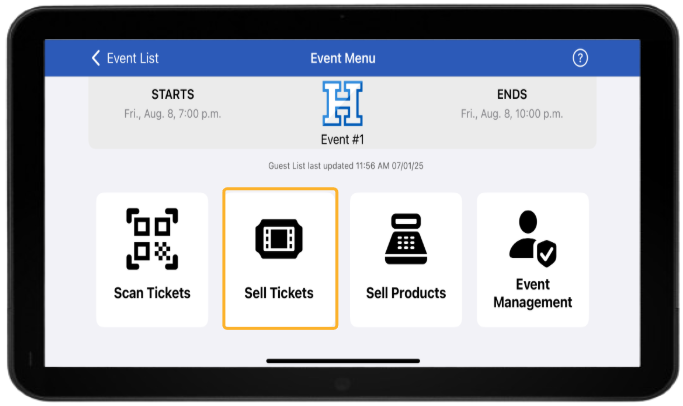
Select the Event you are selling tickets for
Select Sell Tickets from within the Event Menu of the app
Cash or credit card (requires credit card device set up) can be accepted
Pro Tip: For your convenience, we highly recommend using a tablet for any point of sale transactions.
Cash Sales
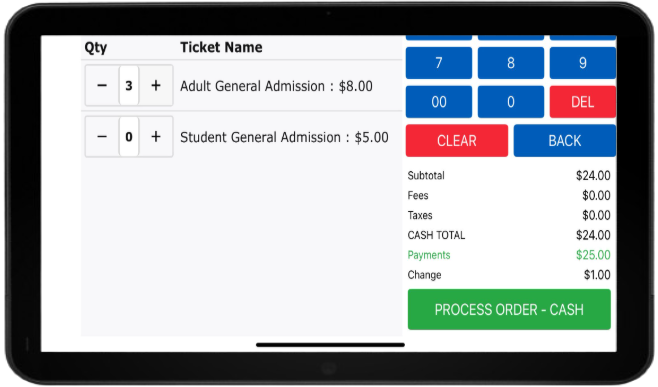
Once you add tickets to the cart, tap Cash
Choose the amount of cash you are receiving
Tap Process Order - Cash
Choose your ticket delivery method
Credit Card Sales
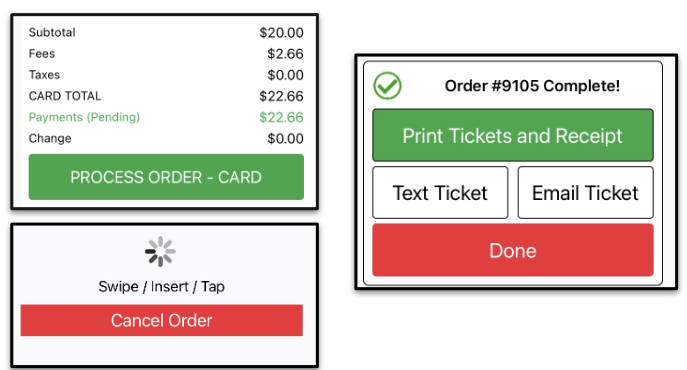
Once you add tickets to the cart, tap Card
Swipe, Insert or Tap the card
Once the Order Complete prompt appears, choose your ticket delivery method
Additional Selling Features:
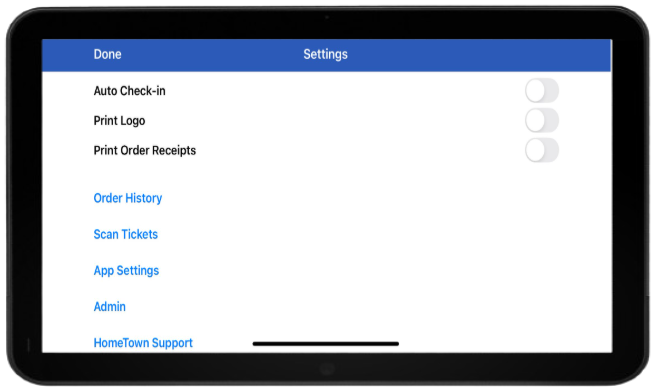
Auto Check-In: Automatically checks the purchaser’s ticket into the event upon purchase
Print Logo: Ability to print logo on ticket when printed
Print Order Receipts: Option to include printed receipt when using the Star Printer
Order History: Takes user to view of Order History
Scan Tickets: Switch from selling to scanning in same screen within POS
App Settings: Exit the app to view its configuration within the Settings app on the device
Admin: Access the Box Office directly from the device being used
Hometown Support: Device/Version/Contact Info