.png)
School Dances
Hometown’s box office enables schools to offer an online ticketing experience for dances such as prom and homecoming. Our team can provide best-practice recommendations and guidance to support your setup.
Student Tickets vs Guest Tickets
When configuring school dance events, consider how you would like to track student and guest tickets. These can be created as separate ticket levels or combined into a single level, depending on whether you need to distinguish between the two.
Option 1: Single Ticket Option
This approach is the simplest and treats student and guest tickets as the same. If there is no need to visually or functionally differentiate between student and guest tickets, this option is sufficient.
In reporting, all tickets will appear identical since they share the same name. If clear reporting distinctions between student and guest tickets are required, consider Option 2.
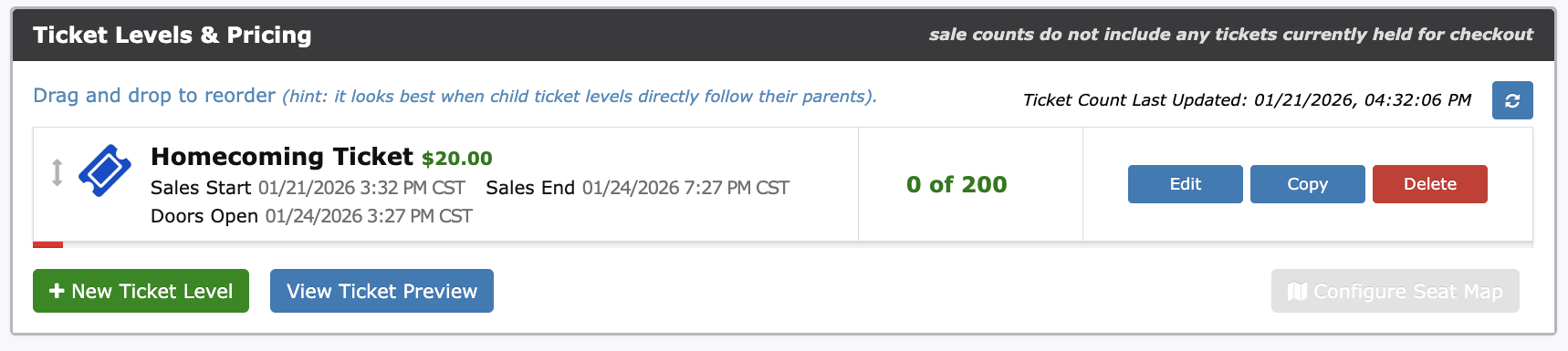
Option 2: Separate Ticket Options
Creating separate ticket options for students and guests allows for improved organization and clearer tracking. These ticket types can also be assigned different colors, making it easier for staff to quickly identify ticket types at the event.
Colors can be applied by selecting the “Apply ticket level color indicator” option when creating or editing a ticket level.

Using Passcodes to Protect Tickets
Passcodes can be used to restrict access to ticket levels and limit the number of tickets a student may purchase. Codes can be configured to allow one or two tickets per student and can be created as either randomly generated codes or by uploading a list of student ID numbers to use as passcodes.
To create passcodes for your event:
Scroll to Advanced Event Options and click Edit next to Event Codes.
Select the Passcodes tab and click New.
Choose the ticket level the code(s) will apply to.
Select one of the following options:
Single Code: Manually enter and create one code.
Upload Code Batch: Upload a list of student IDs to use as passcodes.
Generate Random Codes: Automatically generate a specified number of unique codes.
Set Quantity (total tickets the code can be used for).
Set Max Per Cart (maximum tickets allowed per order).
Click Submit to save.
For additional details, refer to the Event Codes and How to Upload Student IDs/Faculty IDs as Passcodes articles.
Custom Fields at Checkout
Managed Custom Fields allow you to collect additional information during checkout. You can either create Ticket Level specific fields, or Event Level specific fields. The information can be setup to be required or optional, and assigned to specific ticket levels.
To Create Custom Fields:
Scroll to Advanced Event Options and click Edit next to Manage Custom Fields.
Select Ticket Level or Event Level
Select Add first question to add a checkout question.
Choose from the following question types:
Short Answer
Checkbox
Dropdown
Date
Multiple Choice
Click Save Changes to apply your questions.
For more information, see the Managing Custom Fields article.
Commonly used Required Fields:
Emergency Contact Name
Emergency Contact Phone Number
Allergy List
T-Shirt Size
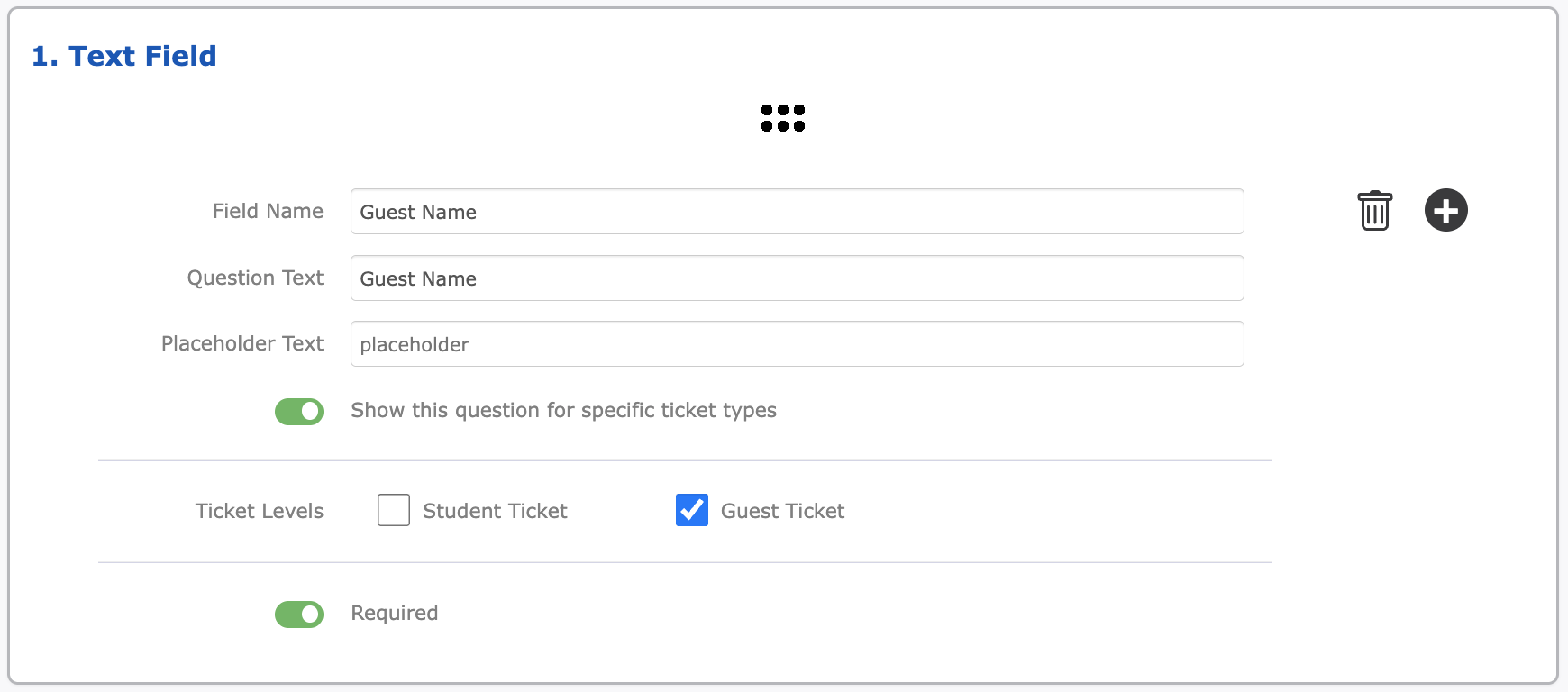
Guest Name
Grade Level
Example of Guest Name Requirement:
Additional Features to Consider
Capacity Manager: Sets an overall ticket limit for the event, regardless of ticket level.
Custom Event Terms: Requires purchasers to agree to custom terms via a checkbox before completing checkout.
Scan In and Scan Out: Watch our Gate App Training video to learn how to scan tickets in and out, creating a record of arrival and departure times to maximize security and ensure every student is accounted for.
If you would like additional guidance on setting up school dance events in your Hometown Box Office, please contact your Client Success Team. They can provide tailored recommendations to best support your event setup.